
Choosing a character
How the patient library is organised and how to pick a scenario.
The Patient tab holds 55+ AI characters, each with its own presenting problem, history, and conversational style.
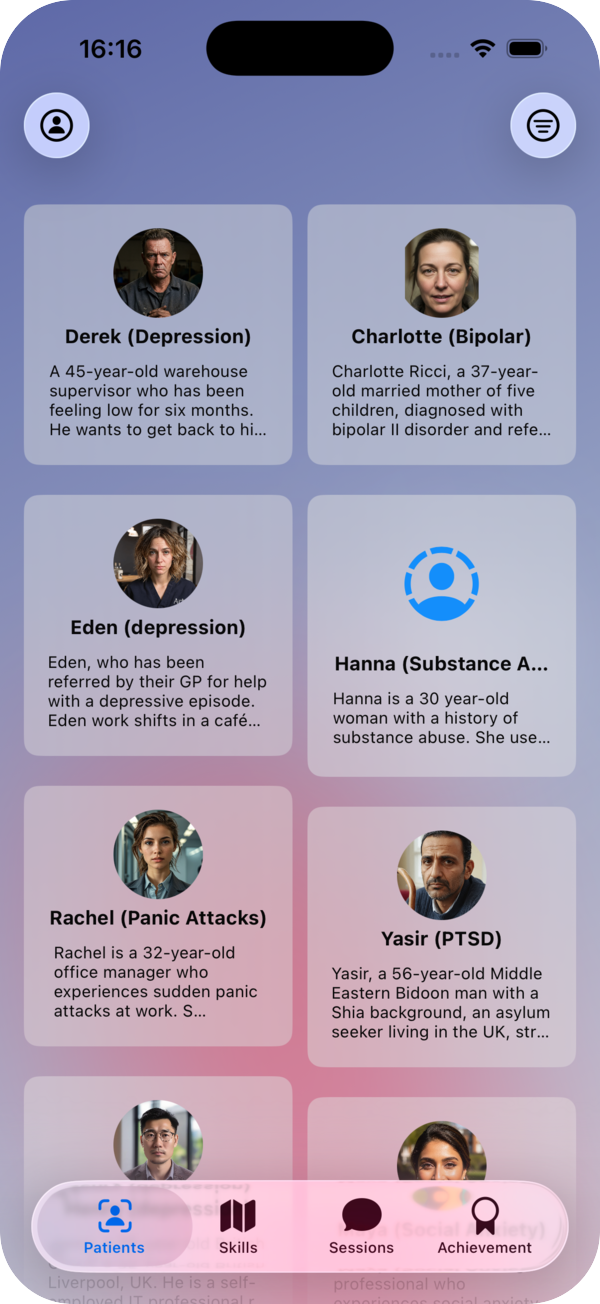
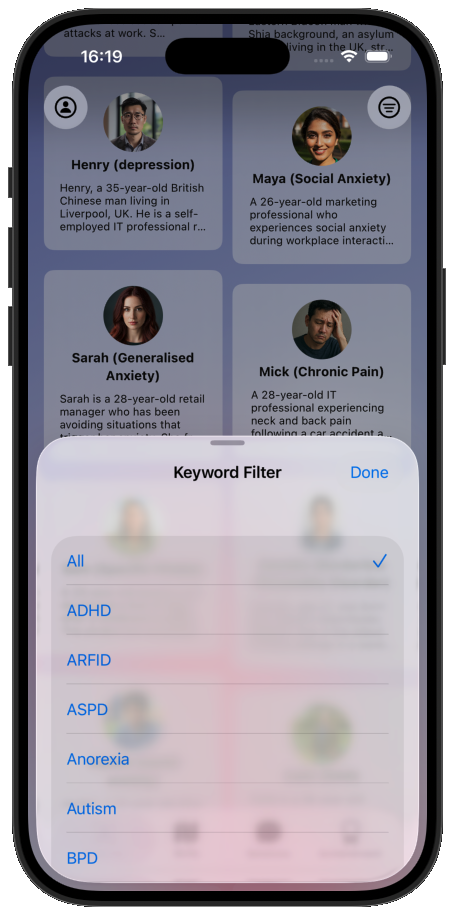
Filtering the library
Tap the filter button in the top-right corner to narrow the library by keyword — for example a presenting problem or diagnosis such as ADHD, ARFID, or BPD. Select the keywords you want and tap Done.
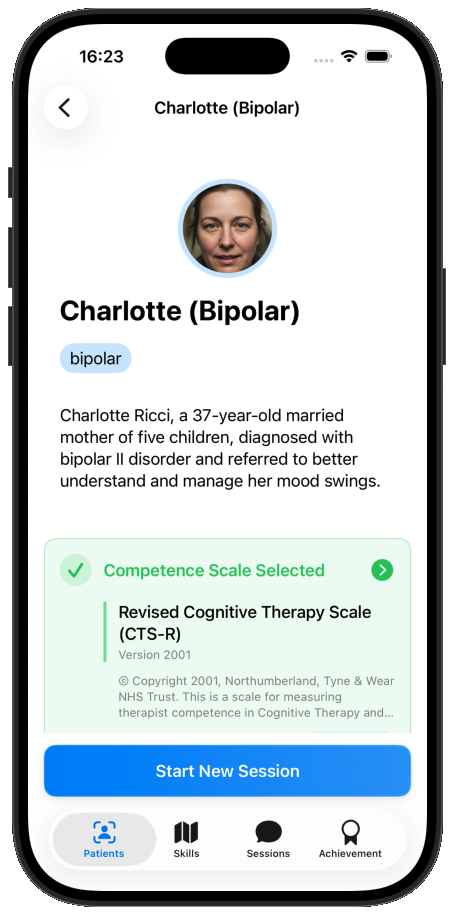
Reading a character
Tap a card to open the character. You'll see a short summary of who they are and their presenting problem, along with the competence scale your practice will be measured against.
Customising the roleplay
Before you start, you can tailor the session — all of this is optional:
- Competence scale — the framework your tips and feedback are based on. The app defaults to CTS-R. Tap through to filter by modality, programme, or stage and pick the scale that suits your course — see Competences and ratings.
- Therapy stage — for example Assessment, so the character responds in a way that fits where you are in treatment.
- Treatment-Interfering Behaviours (TIBs) — switch on behaviours such as problem denial, goal avoidance, or increased risk to make the character harder to work with in specific, realistic ways.
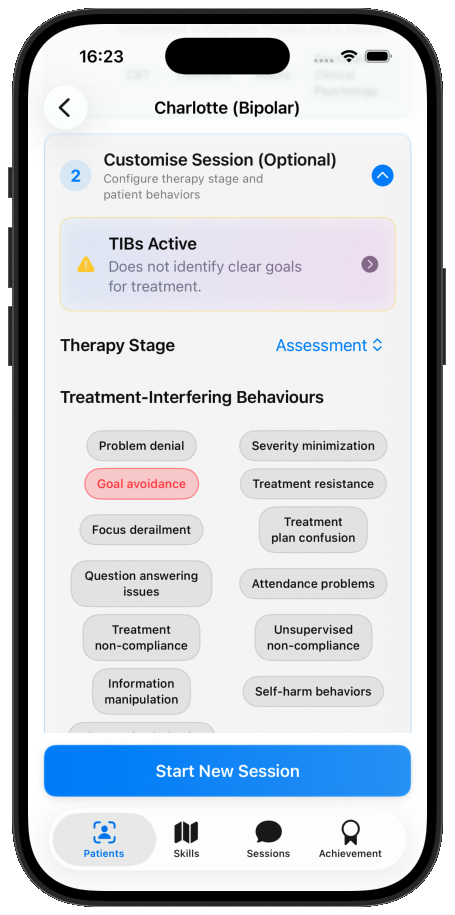
When you're ready, tap Start New Session.
Picking a good next challenge
- Repeat a character you found hard, trying a different technique.
- Move to a new presentation once a technique feels reliable.
- Deliberately try approaches you would hesitate to try with a real client — this is a safe space, and trial and error is the point.