
Running a roleplay
Voice and text modes, hints, non-verbal cues, and message controls.
Character roleplay is an open-ended conversation with a patient character. Speak or type, and the character replies in real time.
Starting a session
From a character, tap Start New Session. The session opens on the Messages tab. Tap Call Patient to begin an audio call, or use the keyboard button to type instead.
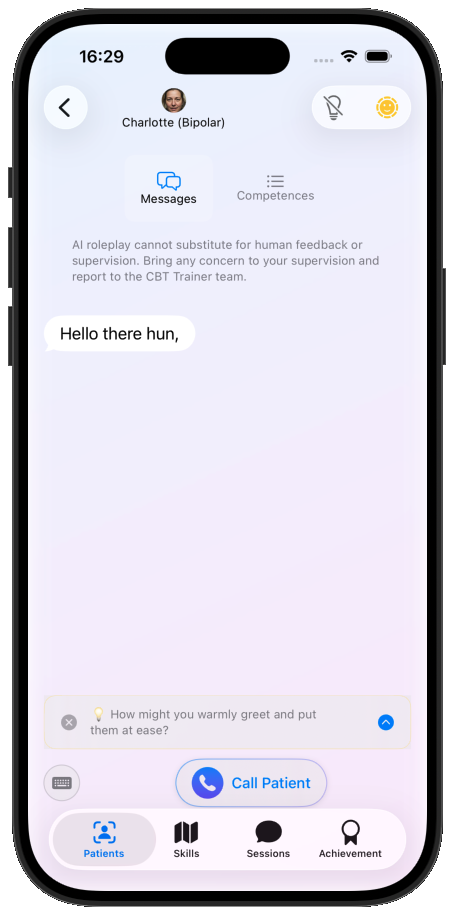
Voice mode
During a call, a waveform reflects your input as you speak. When you've finished your turn, either press the complete button on the right, or simply pause and let the silence detector end your turn for you. Voice input also captures basic non-verbal cues in your delivery, such as a sigh or hesitation.
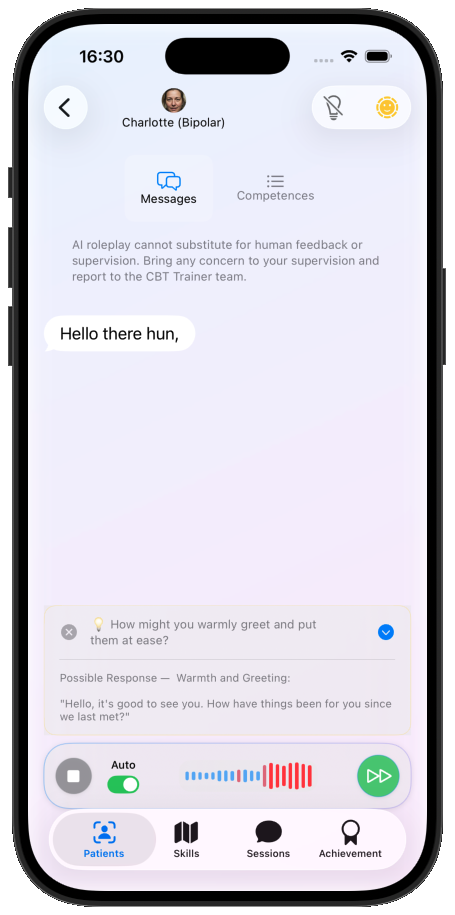
Noisy surroundings?
If the silence detector keeps cutting you off mid-sentence, turn Auto off and end each turn manually with the complete button.
Text mode
Tap the keyboard button to switch to manual text input. Type your response and send it. You can switch between voice and text at any time without losing the conversation — useful in shared spaces or on a poor connection.
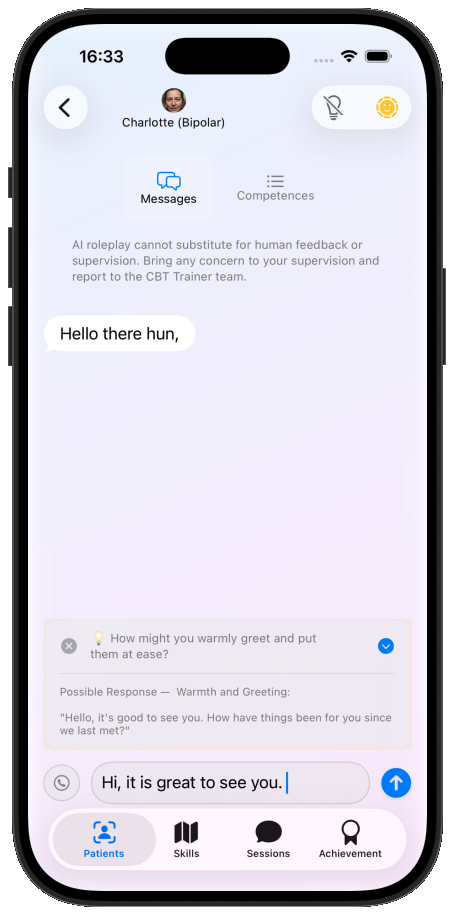
Non-verbal cues
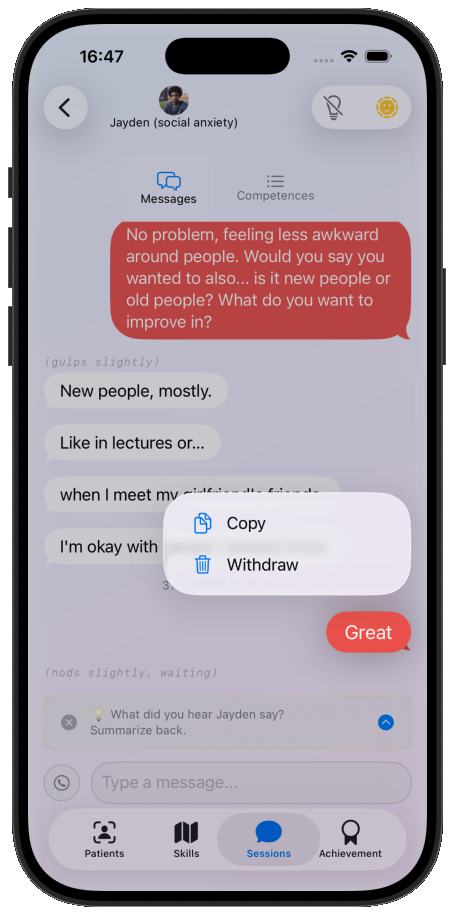
The character's replies include non-verbal cues shown in grey inside brackets, for example (smiles nervously). To turn these off — so the character replies without non-verbal cues — tap the ☀️ button in the top-right.
Hints and tips
If you pause for more than 15 seconds, a character-roleplay tip appears automatically, drawn from the competence scale you're using. Tap through the tip to open a fuller demonstration and an example response.
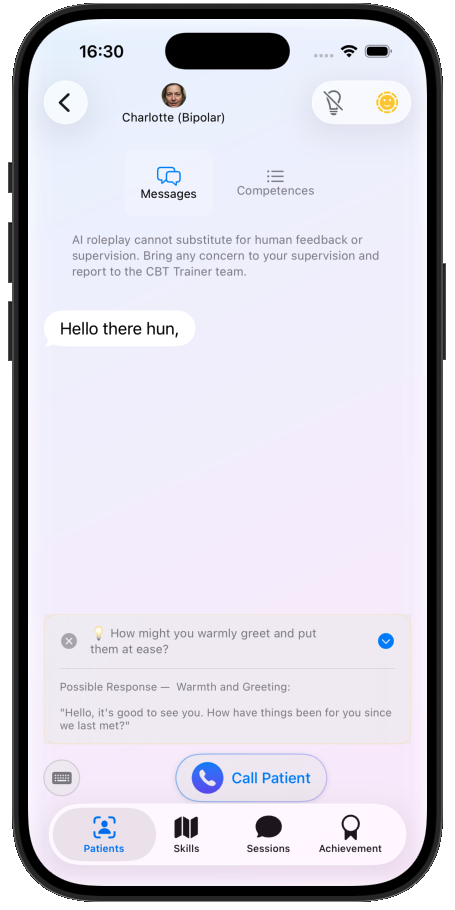
To stop tips appearing automatically, open the 💡 menu in the top-right and turn them off. Use hints freely while you're learning — they're a scaffold, not cheating.
Copying or withdrawing a message
Long-press any message to Copy or Withdraw it. Withdrawing your message also withdraws the character's reply to it, so you can rewind and try a turn again.
Ending a session
End the session when you've finished. Your transcript and any ratings are saved to your account for review. Before you finish, swipe left or tap Competences to get feedback — see Competences and ratings.